Everything a Salesforce admin needs
Log into your Salesforce org as you normally would, click the extension icon, and a new tab opens — already connected to your org. No Connected App, no OAuth setup, no extra logins.
Object Permissions Matrix
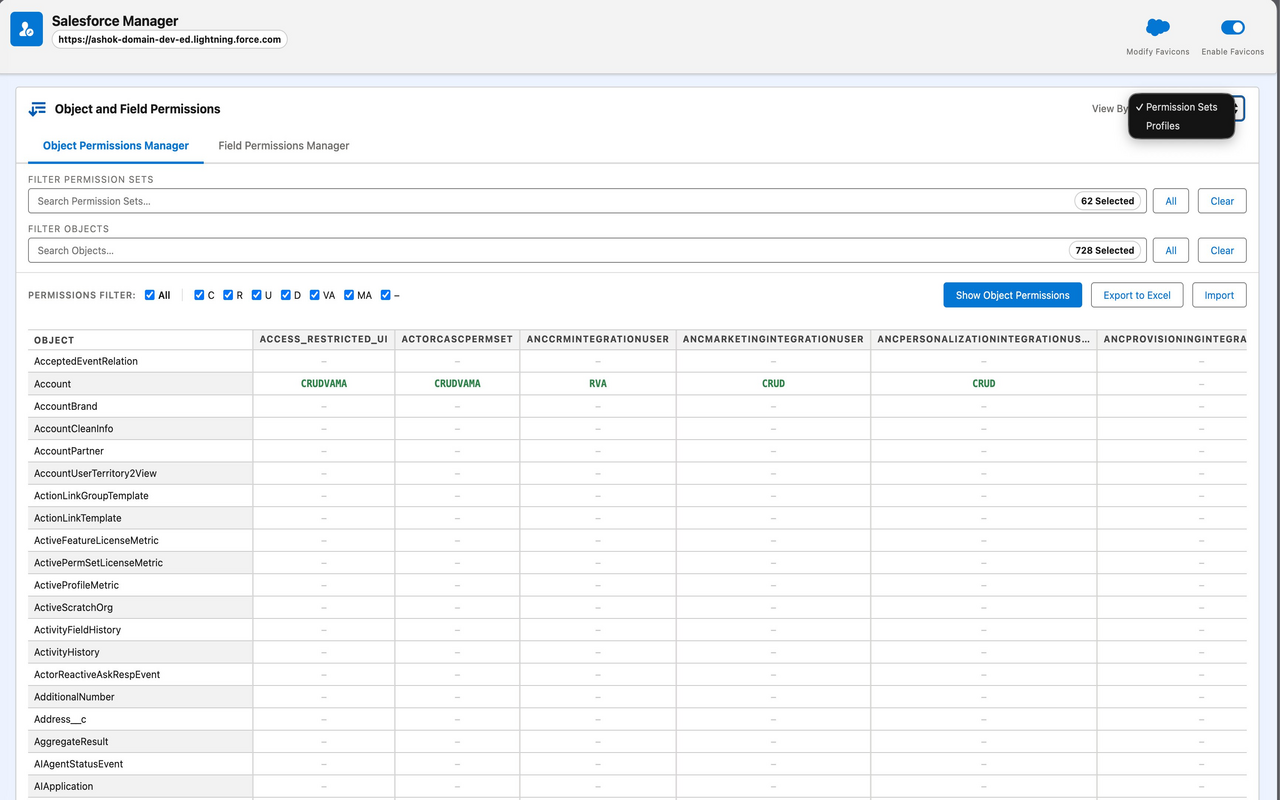
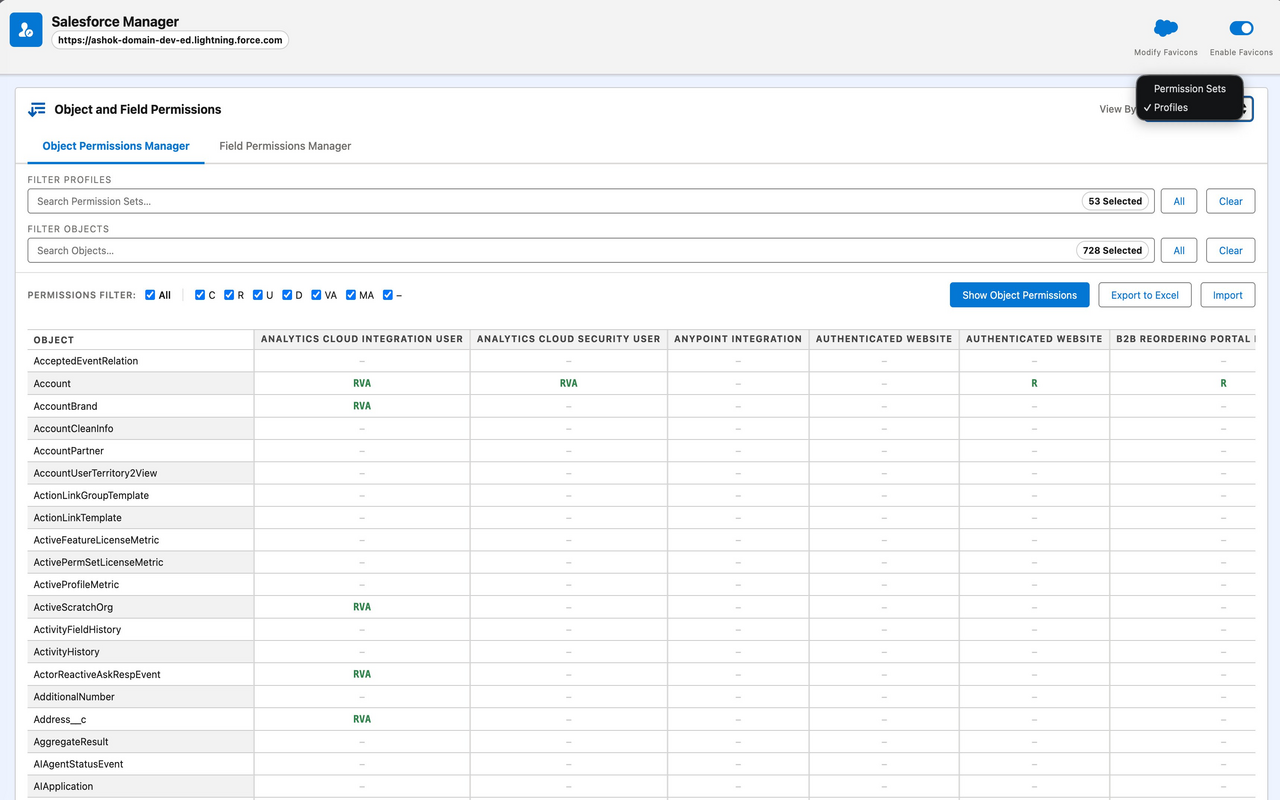
Pick the Permission Sets and Profiles you want to compare. You get a matrix — objects down the left, Permission Sets and Profiles across the top — with Create / Read / Edit / Delete / View All / Modify All shown for each combination. Filter by object name or permission type.
Field Permissions Matrix
Drill into any object's field-level security across Permission Sets and Profiles. See Read / Edit access per field in one scrollable table.
Smart Filtering
Switch between Permission Sets and Profiles using the View By toggle. Filter by object name or permission type, and use dependency rules that automatically enforce Salesforce's permission hierarchy (e.g. Edit requires Read).
Export to Excel
Download the full permissions matrix as a structured .xlsx file for offline review, auditing, or sharing with stakeholders.
Import & Apply Changes
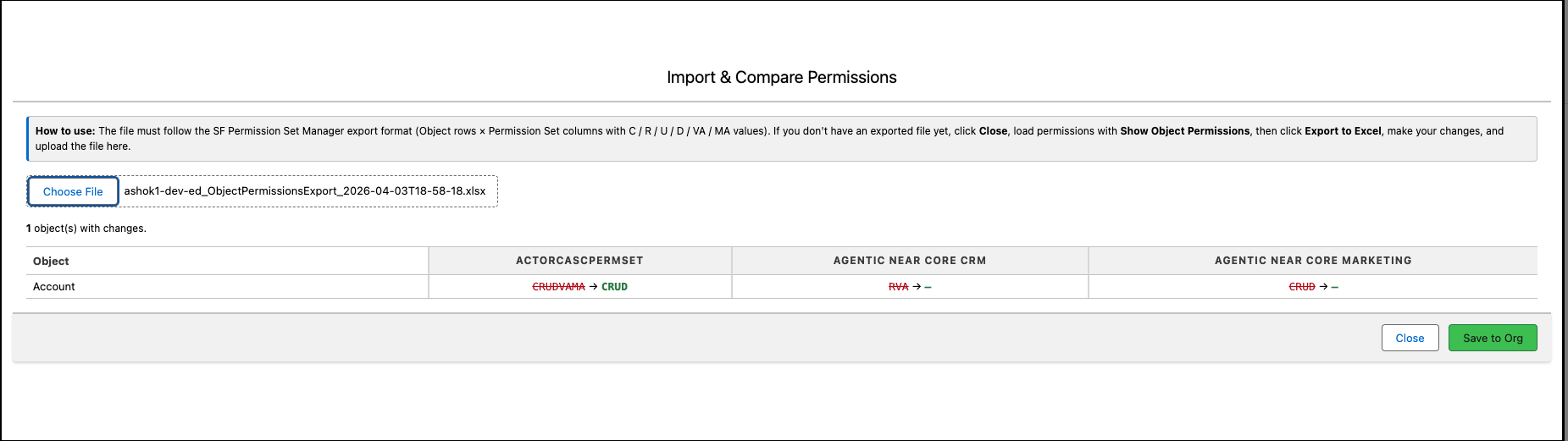
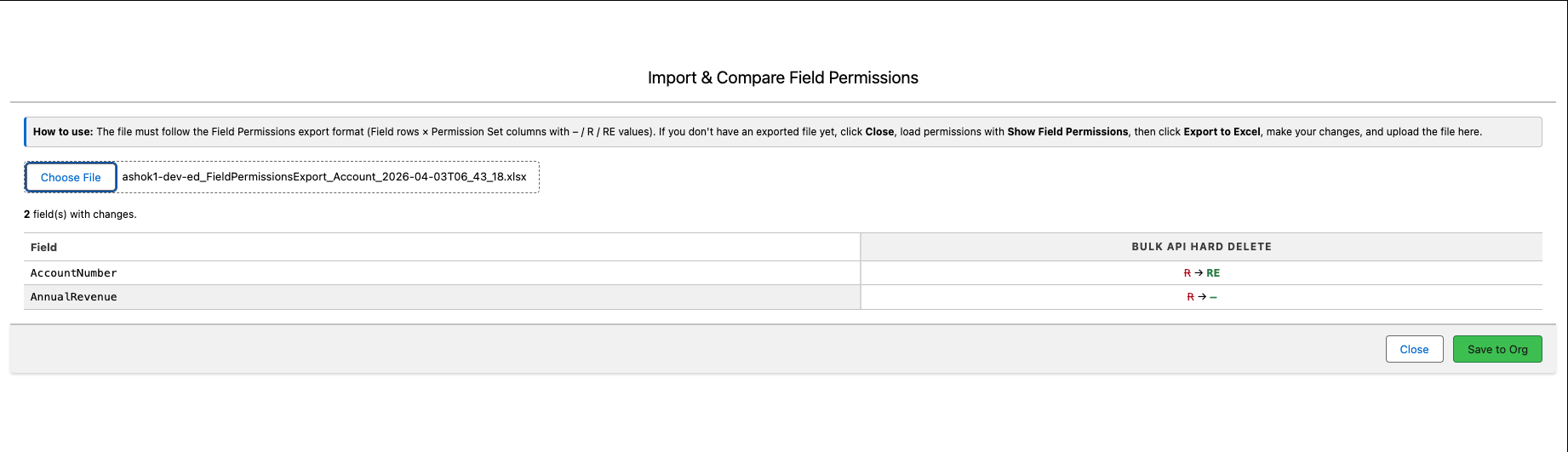
- Upload a modified
.xlsx, preview the delta, and apply changes in one click. - Export from one org and import into another to compare and replicate permissions across orgs.
Tab Colours for Multiple Orgs
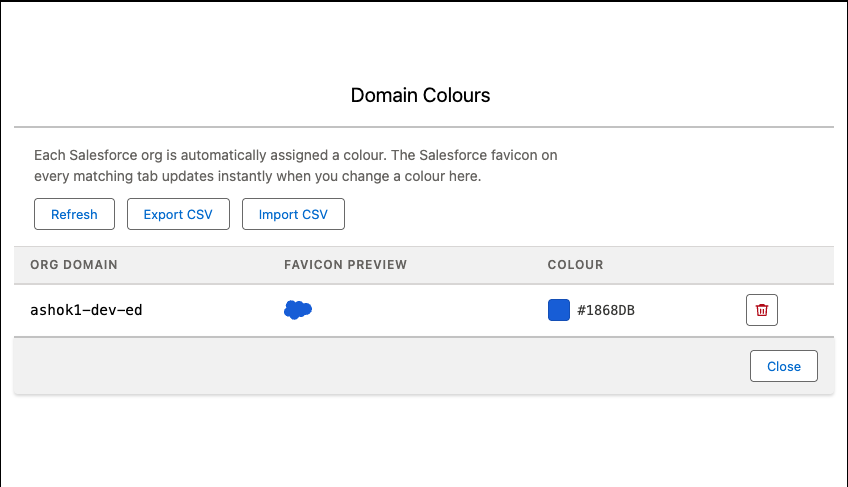
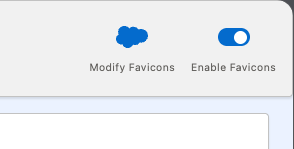
Automatically colour-codes the browser tab favicon for each org so you can tell them apart at a glance — no more squinting at URLs. Customise colours, toggle the feature on or off, and import/export your colour settings from within the extension.
No Login Required
Uses your existing Salesforce browser session automatically. No Connected App, no OAuth, no client ID to configure.

Your data never leaves your browser
All API calls go directly to your Salesforce org. No data is sent to any external server, tracked, or stored beyond your current browser session. Read the full privacy policy.